Data Warehouse
The Data Warehouse integration is currently in active development as part of Experiments v2. This page describes the flow as it stands in the current prototype — naming, scope, and behaviour may change before general availability.
Connect Flagsmith to your data warehouse (Snowflake, BigQuery, or Databricks) to stream flag evaluation and custom event data for experimentation and downstream analysis. Once connected, Flagsmith writes every flag evaluation and custom event to the configured warehouse, where your team can query it, join it with existing business data, and use it to compute experiment metrics.
The Data Warehouse integration is required to run Experiments — Flagsmith reads from the warehouse to compute metric values per variation. Outside of experiments, it's also useful as a durable store of flag-evaluation history for audit and analysis.
Scope
- The connection is organisation-scoped: one connection per organisation, available across every project in that organisation.
- Configure it once and every project inherits it.
Integration Setup
Step 1: Open Organisation Integrations
Screenshot placeholder — Organisation Integrations page with the Data Warehouse card highlighted. Target path:
/img/integrations/data-warehouse/integrations-list.png
- Go to Organisation Integrations from the organisation nav.
- Locate the Data Warehouse card.
- Click Add Integration.
Step 2: Choose a warehouse
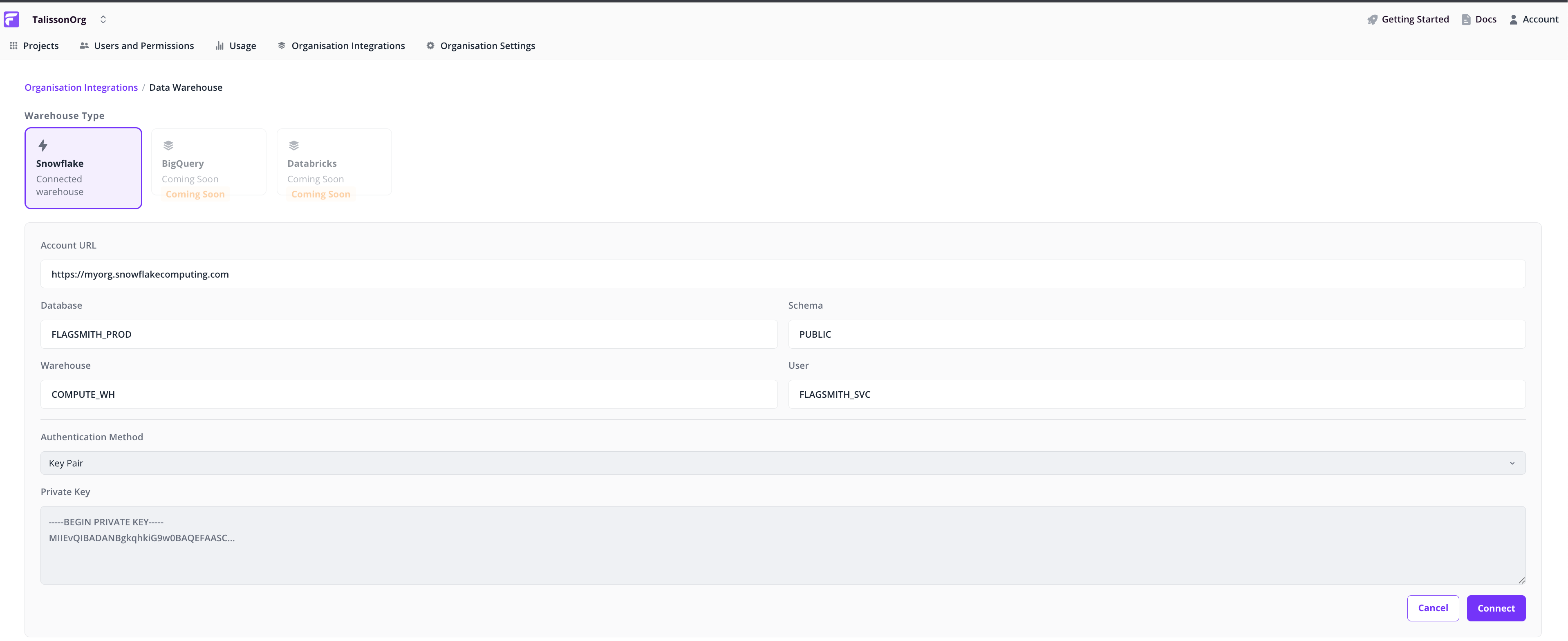
- Pick your warehouse provider — Snowflake, BigQuery, or Databricks.
- Fill in the connection details (account URL, database, schema, warehouse, user, authentication method).
Step 3: Connect
Click Connect to save the configuration. Flagsmith validates your credentials, and once authenticated, starts streaming flag-evaluation and custom-event data to your warehouse.
If Flagsmith can't authenticate, the page shows the error with the details your admin will need. Correct the credentials and try again.
Step 4: Verify data is flowing
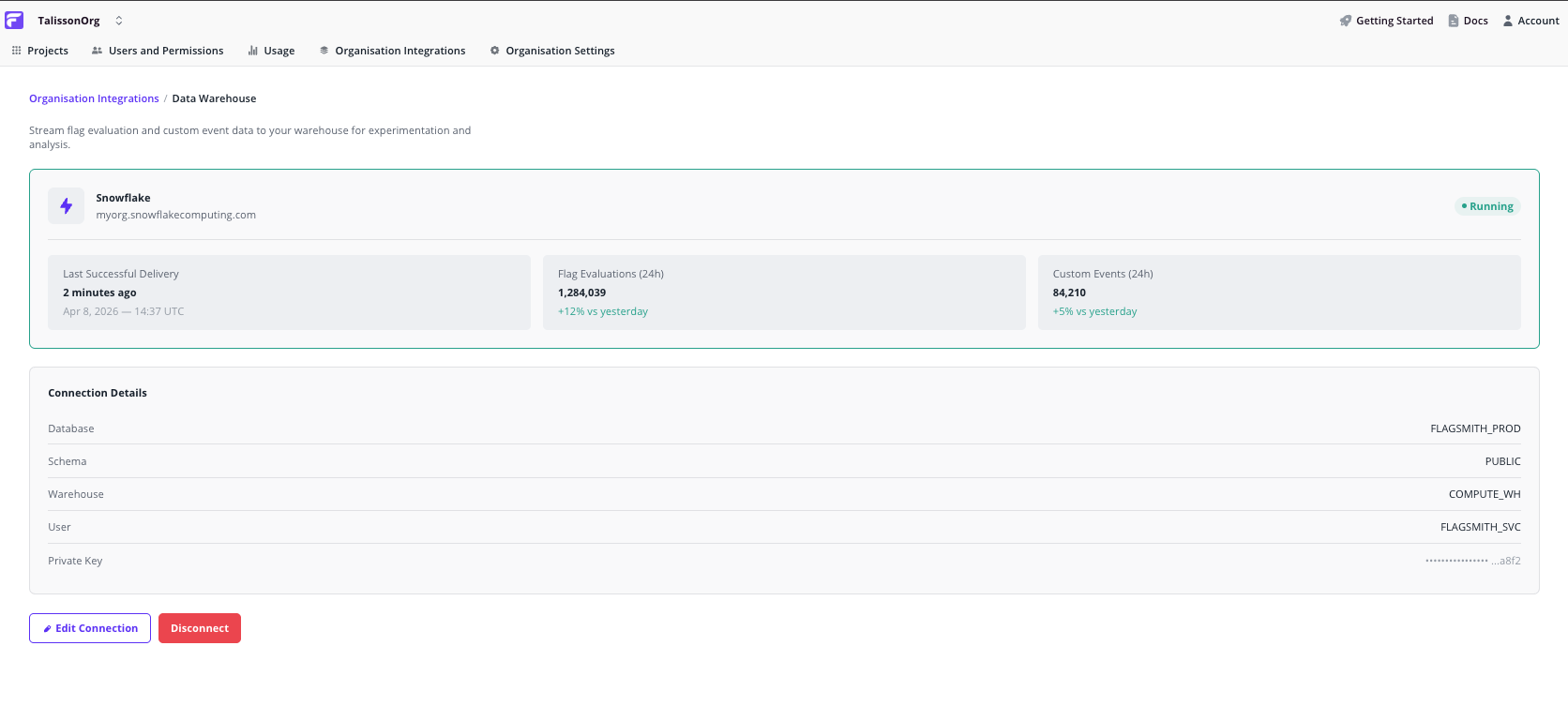
Once connected, the warehouse page shows:
- 24-hour flag evaluation count — confirms Flagsmith is writing to your warehouse
- 24-hour custom event count — confirms your app is writing events Flagsmith can read for metric computation
- Connection details — read-only summary of what's configured, with Edit and Disconnect controls
Managing the connection
- Edit — opens the configuration form with existing values prefilled. Save to revalidate the credentials.
- Disconnect — stops data streaming and clears the configuration. Historical data already written to your warehouse is unaffected.
How it Works
Flagsmith writes to the warehouse asynchronously, so flag-evaluation latency for your app is unchanged. Evaluations queue and flush in background workers — expect ingestion lag measured in minutes, not seconds.
- Every call to
Get Identity Flagsresults in one evaluation record per flag being written to the configured warehouse. - Custom events sent via the SDK's analytics endpoint are written to a sibling table in the same warehouse.
- Table schemas are managed by Flagsmith — you don't need to create or migrate tables yourself.
Next steps
- Learn how to run Experiments on top of the data you're now streaming.
- Explore other analytics integrations if you also want to stream to a SaaS platform.